
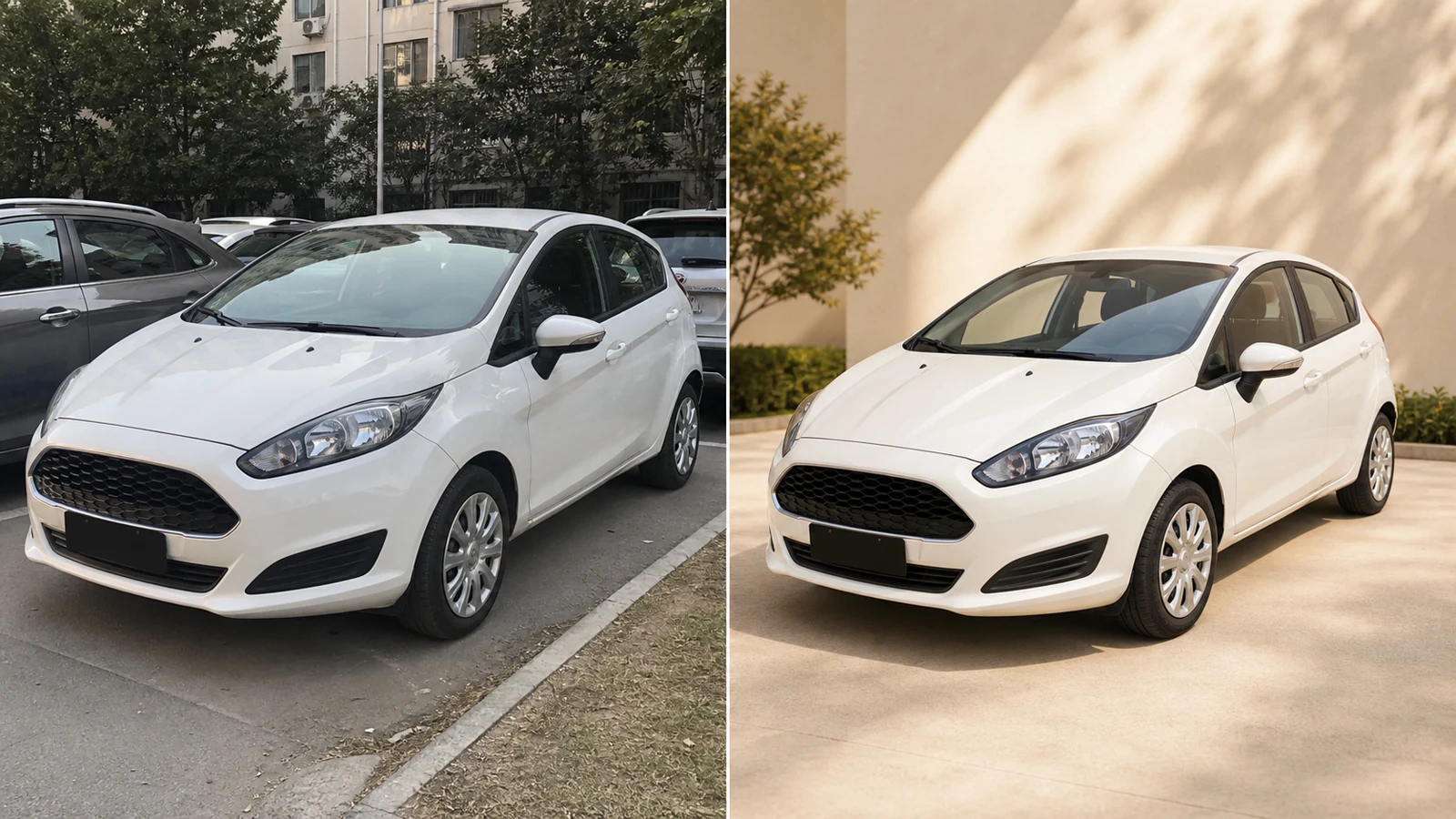
Before
After
Replace Backgrounds
Swap photo backgrounds while keeping the subject, lighting and natural shadows.
Try this prompt
Use a beige studio background. Keep the subject unchanged and add a soft floor shadow.Background editing prompts
Edit one photo with a text prompt, or combine reference images into one result. Choose a model and describe what should change and what should stay.
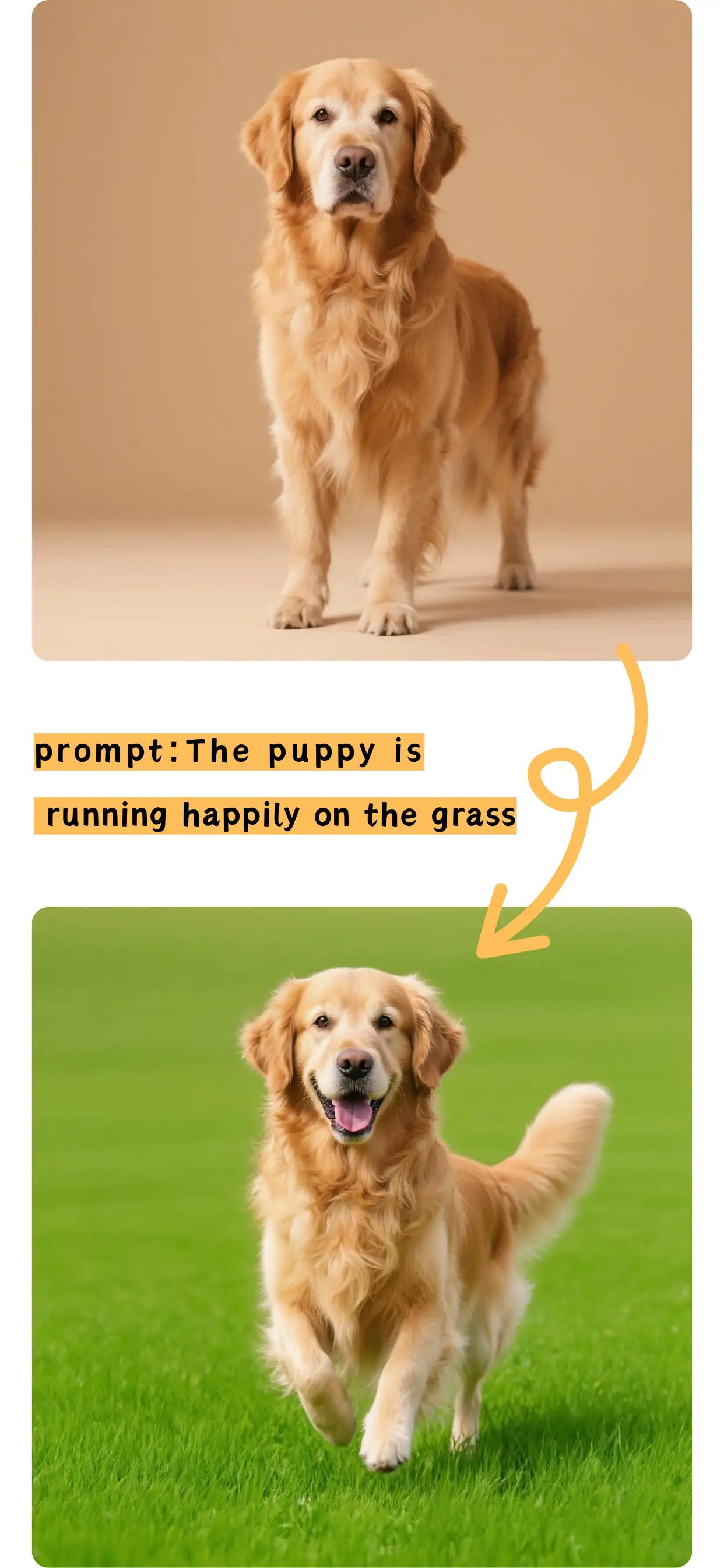
Replace backgrounds, remove objects and edit product photos or portraits with AI.
Swap photo backgrounds while keeping the subject, lighting and natural shadows.
Try this prompt
Use a beige studio background. Keep the subject unchanged and add a soft floor shadow.Background editing prompts
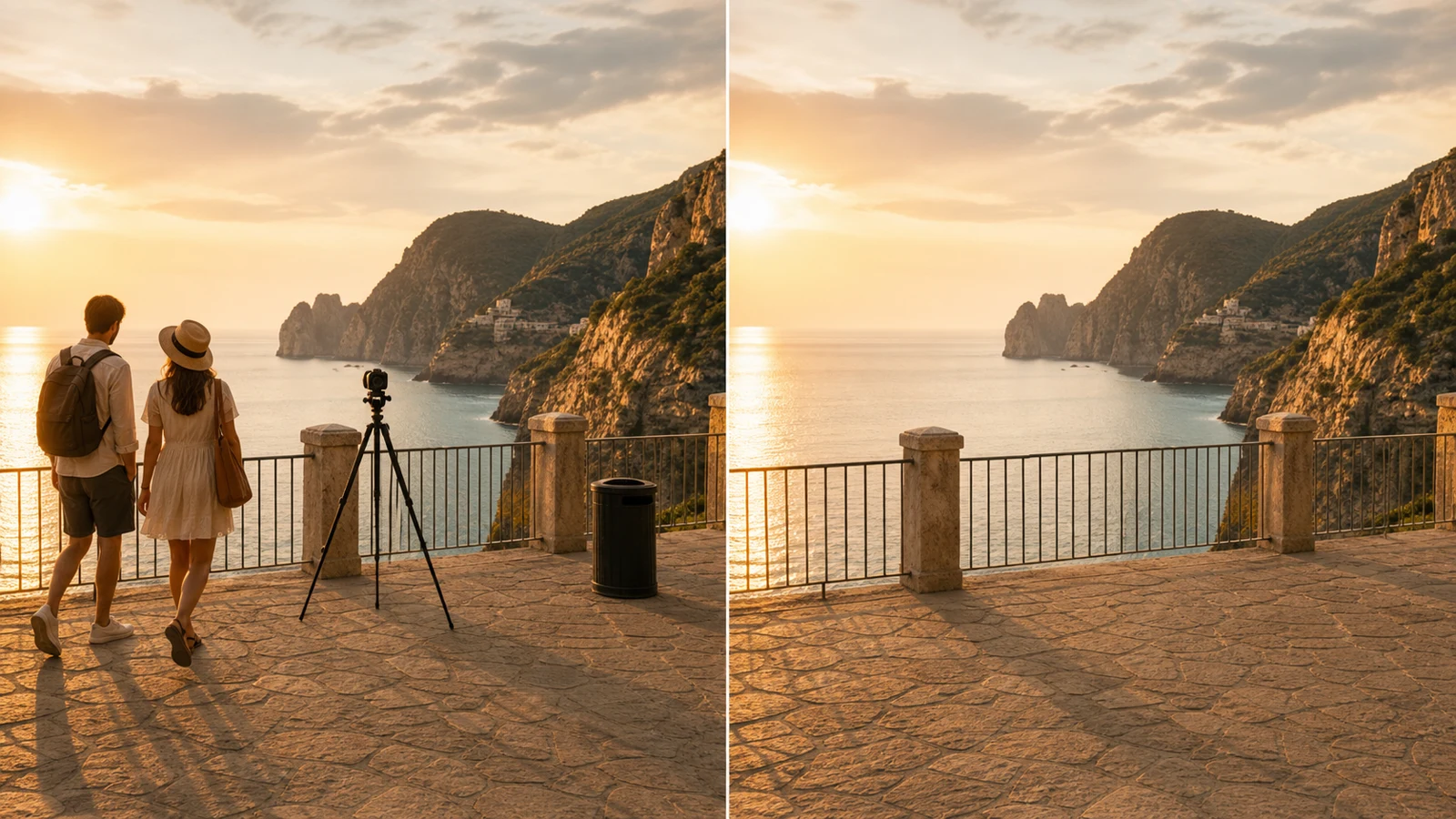
Remove unwanted objects or people and rebuild the surrounding scene.
Try this prompt
Remove the people in the background. Keep the landscape and natural textures unchanged.Remove an object
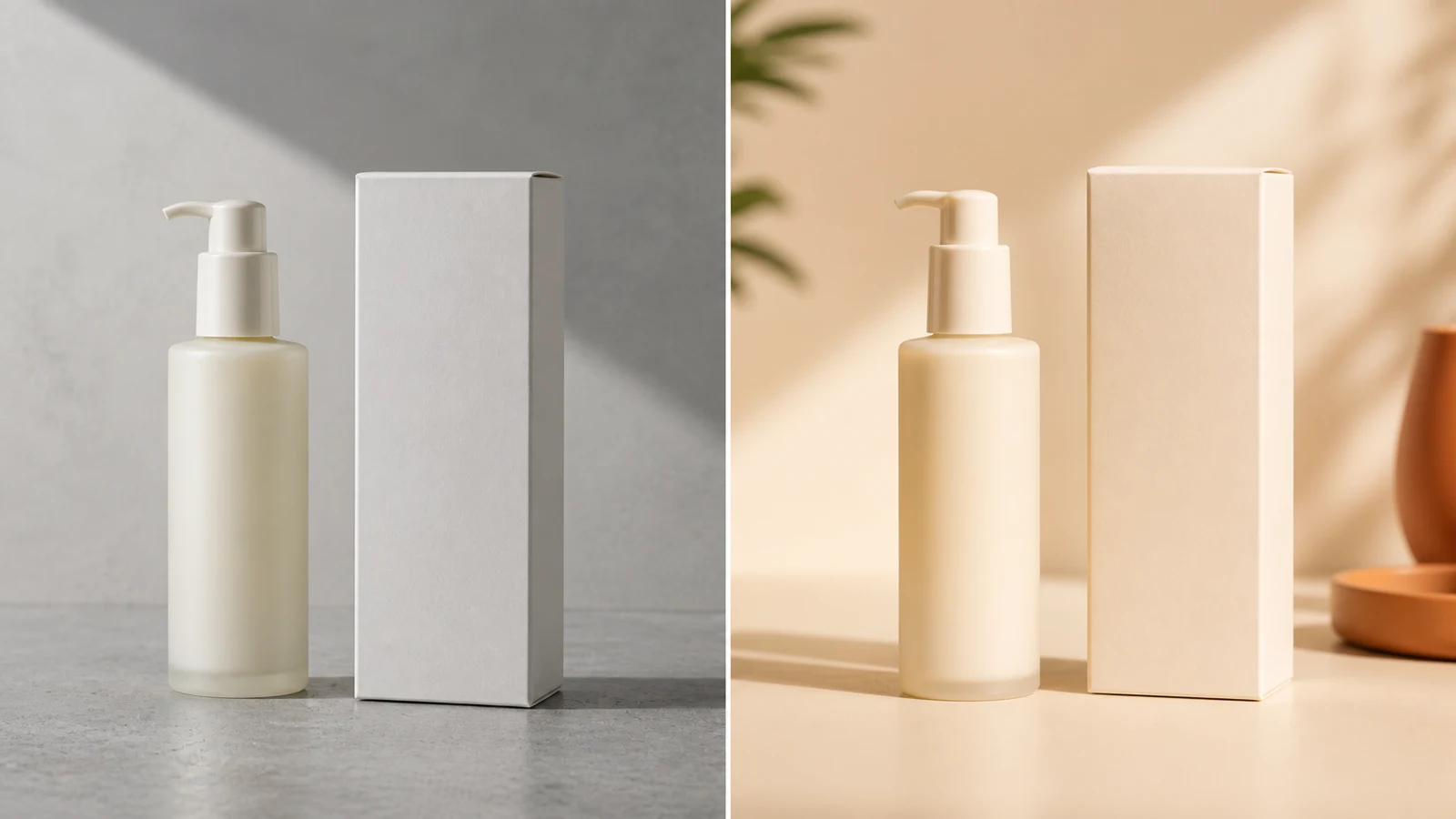
Refresh product photo backgrounds and lighting while preserving shape and label details.
Try this prompt
Place the bottle on white marble with soft light. Preserve its shape and label.Product photo prompts
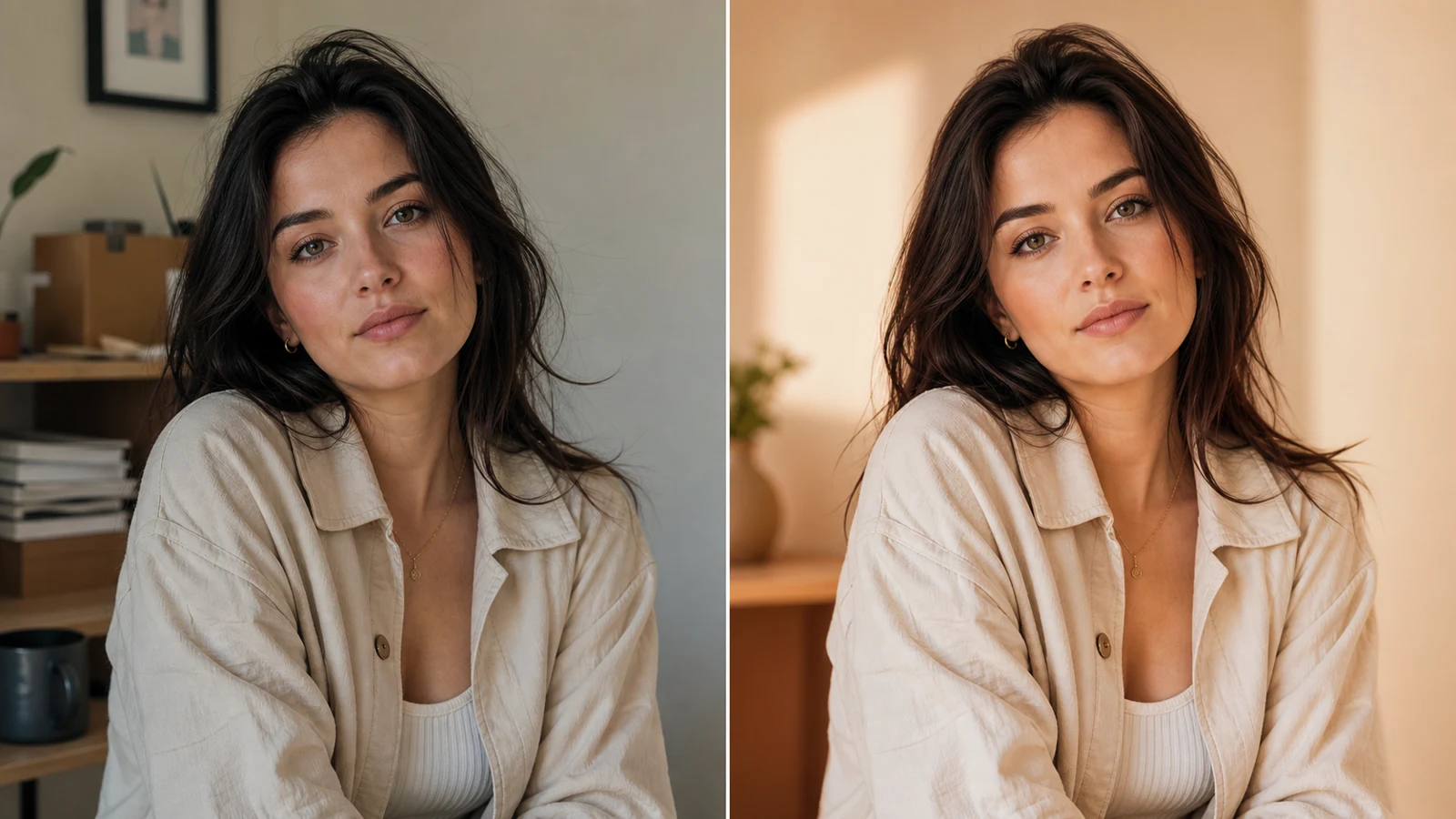
Adjust portrait lighting and colour while keeping facial features and skin texture.
Try this prompt
Add warm window light. Preserve facial features and natural skin texture.Portrait editing prompts
Use one source for a focused edit, or assign a clear role to each reference.
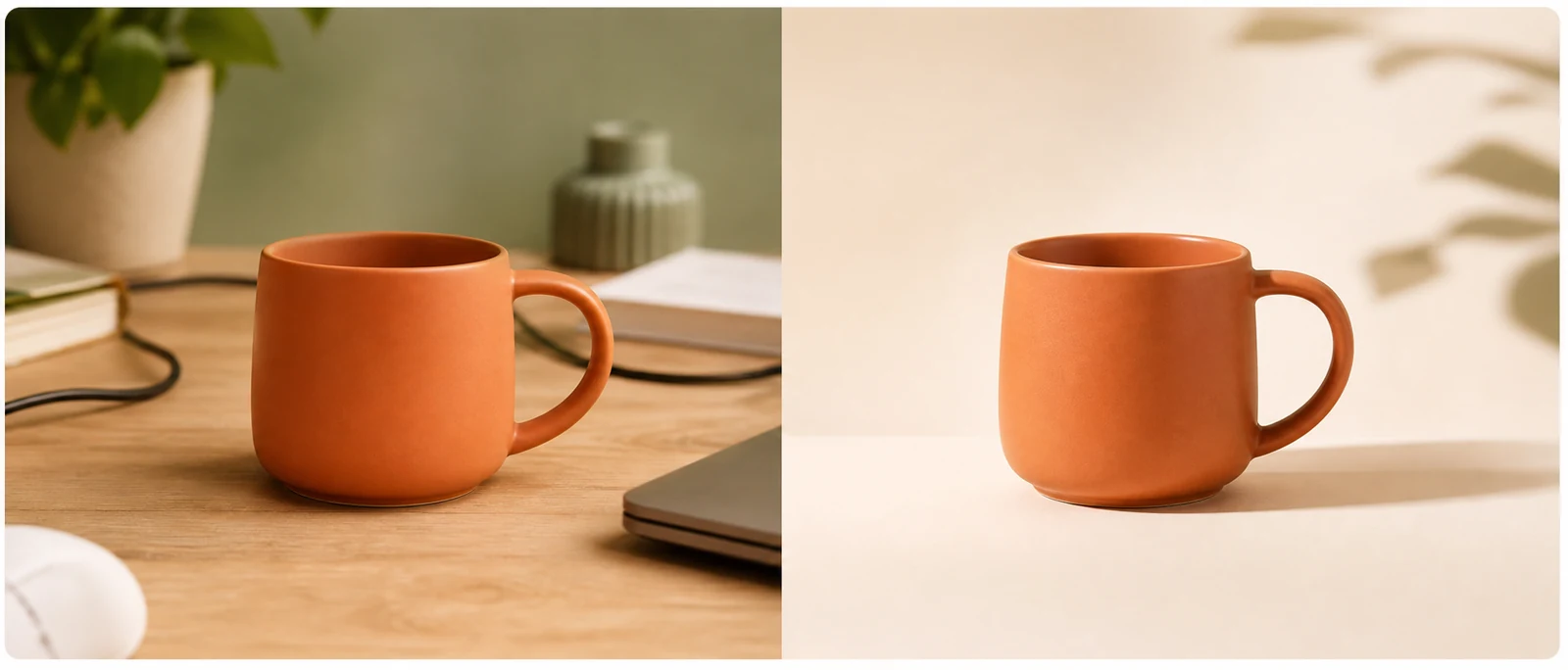
Upload one photo for a background swap, object removal or light correction. Start with one focused instruction. For several changes, compare a combined prompt with separate passes. Every new generation uses credits, and results can vary.
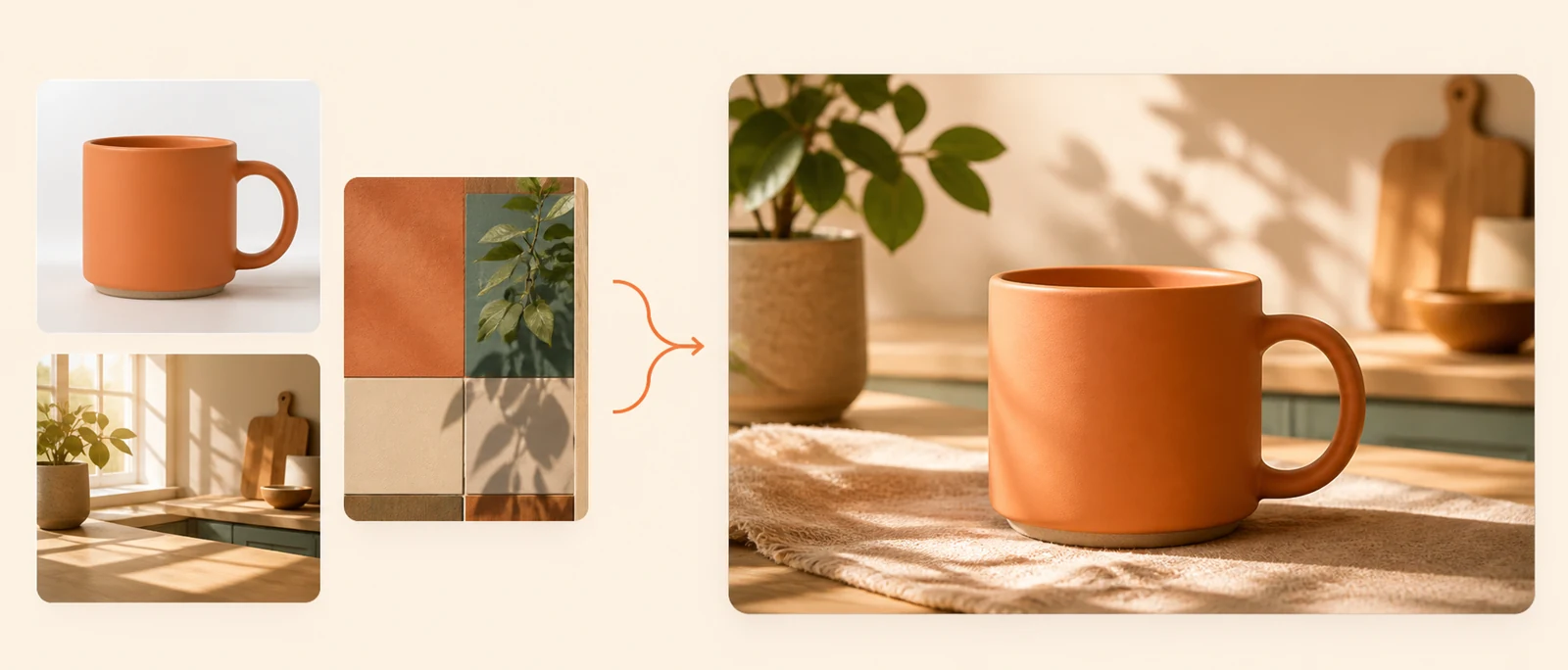
Combine subjects, scenes or styles from several references. Specify image 1 for the product and image 2 for the setting, then describe matching light and perspective. Check the selected model’s reference limit in the table.
Compare AI image editing models, credits and output settings. Default: Nano Banana 2 Lite.
No subscription
Edit and combine reference images with a choice of output resolutions.
6 credits
Example instruction
Place the bottle from image 1 in the room from image 2. Preserve its label.
Pro / Max subscription
Choose basic or high quality for photo edits. Credits vary by quality and reference count.
14 credits
Example instruction
Correct the shirt’s colour cast. Keep the fabric texture and folds.
Pro / Max subscription
Combine multiple references with control over composition and output resolution.
12 credits
Example instruction
Move the subject to the left third. Extend the wall and keep the lighting.
No subscription
Edit from references with selectable resolution and background options, including transparency.
8 credits
Example instruction
Change the wall to sage green. Keep the furniture and camera angle.
| Model | Access | Default credits / image | Reference limits | Output options |
|---|---|---|---|---|
| Nano Banana 2 Lite | No subscription | 6 credits | 10 images; 30 MB/file | Model default · 15 aspect ratios |
| Nano Banana 2.1 | No subscription | 6 credits | 10 images; 30 MB/file | 1K · 2K · 4K · JPG · PNG · 15 aspect ratios |
| Seedream 5 Pro | Pro / Max subscription | 14 credits | 10 images; 10 MB/file | Basic · High · PNG · JPEG · 8 aspect ratios |
| GPT Image 2.5 Flare | Pro / Max subscription | 12 credits | 16 images; 30 MB/file | 1K · 2K · 4K · 13 aspect ratios |
| Seedream 4.5 | No subscription | 13 credits | 10 images; 10 MB/file | Basic · High · 8 aspect ratios |
| Seedream 5 Lite | No subscription | 11 credits | 14 images; 10 MB/file | Basic · High · 8 aspect ratios |
| GPT Image 2 | No subscription | 12 credits | 16 images; 30 MB/file | 1K · 2K · 4K · 16 aspect ratios |
| Nano Banana 2 | No subscription | 16 credits | 14 images; 30 MB/file | 1K · 2K · 4K · PNG · JPG · 11 aspect ratios |
| Nano Banana Pro | No subscription | 36 credits | 8 images; 30 MB/file | 1K · 2K · 4K · PNG · JPG · 11 aspect ratios |
| Qwen Image 2.1 | No subscription | 8 credits | 10 images; 30 MB/file | 1K · 2K · PNG · WEBP · JPEG · 10 aspect ratios |
Name the subject, desired result and unchanged details. Adapt these examples to your scene and inspect the output.
Place the product on a pure white surface with a soft contact shadow. Keep the label text and product shape unchanged.
Brighten the room with natural window light and straighten vertical lines. Keep the furniture layout and room dimensions unchanged.
Reduce the crease across the centre and reconstruct the damaged background. Keep the original grain and black-and-white tone.
Extend the background to a 9:16 composition. Keep the subject centred at the same size and continue the background texture.
Render this photo as a soft watercolour illustration. Preserve the composition, number of objects and subject placement.
Refine one requirement at a time. Regenerating uses credits again.
Edit, compare and download in your browser.
Choose single-image editing or fusion, then review the model’s controls and credit estimate.
Upload JPG, PNG or WebP within the selected model’s reference count and file size limits.
Describe the change and what must stay. Assign each reference a role.
Compare the result with your original and download it. Output size follows model settings, not necessarily upload dimensions.
New users receive 12 credits on first login: about 2 standard edits with Nano Banana 2 Lite at 6 credits per image. Other models and settings can cost more, and subscription-only models require an eligible plan.
Choose recurring credits through a subscription or buy a one-time pack. One-time credits do not renew monthly; subscription credits follow the billing cycle. See pricing for current options.
See plans and credit packsAnswers about editing, generation, credits and the independent product behind this site.
An independent browser tool for AI photo editing, fusion and text-to-image creation. This page starts with a photo.
New users receive 12 trial credits once. Later generations need sufficient credits; some models also require a subscription. See pricing.
Yes. Upload a photo and describe the change and unchanged details. Compare the result with your original.
Yes. References can provide subjects, backgrounds or styles. Each model has its own reference and file size limits.
Compare access, references, output settings and credits. Keep the same source and instruction when comparing results.
JPG, PNG and WebP uploads are supported within model limits. Check settings for output formats and resolutions.
Completed results appear in your account history for viewing and downloading while available. See the privacy policy for data handling.
Yes. The AI Photo Generator creates new images from text and shares this editor’s account and credit balance.
Yes. Upload your photo, choose a model and describe the edit. Review the output for unintended changes.
Yes. Your upload provides the reference and your prompt supplies instructions. Fidelity depends on the model and request.
Download from the completed result or account history. Downloading an existing result does not start another generation.
No. Deepseek Image is independent, with no affiliation, endorsement or sponsorship from DeepSeek. Available models are listed in the editor.
Choose a tool that matches your starting point.
Create a new picture from a written description.
Remove an unwanted object from a photo.
Process Gemini’s known visible image mark locally in your browser.
Explore ready-made instructions and visual starting points.
Upload a photo, describe a change and check your settings.


